You're watching a familiar scene, but the actor's mouth moves before the words arrive. You change the channel, restart the app, and reach for the TV remote, only to make the mismatch worse. That frustrating lag usually doesn't mean the television is failing. It means the picture and sound are taking different routes through the system.
The reliable way to learn how to fix audio delay on TV is to diagnose the path before adjusting the offset. A TV may add delay while processing the image, while a soundbar, receiver, codec conversion, cable connection, or Bluetooth link adds delay to the audio. Once you identify which side is late, the solution is usually a measured millisecond adjustment rather than random slider changes.
Table of Contents
- Why Your TV Audio Falls Out of Sync
- Quick Diagnosis to Find the Real Source of Delay
- Fast TV Settings That Fix Most Audio Delays
- Fixing Delay by Connection Type Including ARC eARC and Bluetooth
- Soundbar Receiver and Console Tweaks for Perfect Lip Sync
- Final Checks and When to Fix Recorded Audio Instead
Why Your TV Audio Falls Out of Sync
Dialogue exposes lip-sync problems faster than almost anything else. Your brain expects the voice to match the speaker's mouth, and even a modest mismatch becomes obvious during a close-up conversation. Music and sound effects can hide the problem because they don't provide the same visual reference.
Modern televisions perform substantial video processing. Motion smoothing, noise reduction, HDR handling, frame-rate conversion, and picture enhancement can buffer the image before it reaches the screen. Meanwhile, audio may travel directly to the TV speakers or through an external system that performs its own decoding and processing. Those paths can finish at different times.
External equipment creates another layer. A soundbar or AV receiver may decode a Dolby or DTS signal, apply surround processing, and then send audio to the speakers. Optical, ARC, eARC, HDMI-connected devices, and Bluetooth can each behave differently, particularly when the television is converting the output format. Manufacturer troubleshooting guidance also identifies the broadcast, cables, external audio processing, output settings, Game Mode, and firmware as possible sources, so the TV itself shouldn't be blamed automatically. Sony's audio and video synchronization troubleshooting guidance is useful when the delay appears only on certain inputs or apps.
What acceptable sync means
Lip-sync isn't a matter of personal preference alone. Broadcast references based on ITU-R BT.1359 place detectability at about +45 ms when audio is early to -125 ms when audio is late, while EBU guidance recommends keeping end-to-end synchronization within +40 ms and -60 ms. Stage-level guidance is tighter, around +5 ms to +15 ms. These thresholds are summarized in the history of audio-video latency and input lag.
HDMI 1.3, introduced in June 2006, brought EDID latency reporting and a standardized Auto Lipsync Correction path. That allowed compatible TVs, receivers, and soundbars to exchange delay information instead of relying entirely on guesswork. The next step is to isolate your equipment, because the right offset depends on where the timing error starts.
If you want help with a broader home setup, Computer Daddy audio troubleshooting help can also provide useful guidance for related sound and device problems.
Quick Diagnosis to Find the Real Source of Delay
Before changing a setting, establish whether the audio is early or late, and whether the issue exists on the TV or only after the signal reaches external equipment. Use the same dialogue-heavy scene for every test. Don't switch between different videos, because the recording itself may contain an editing error.
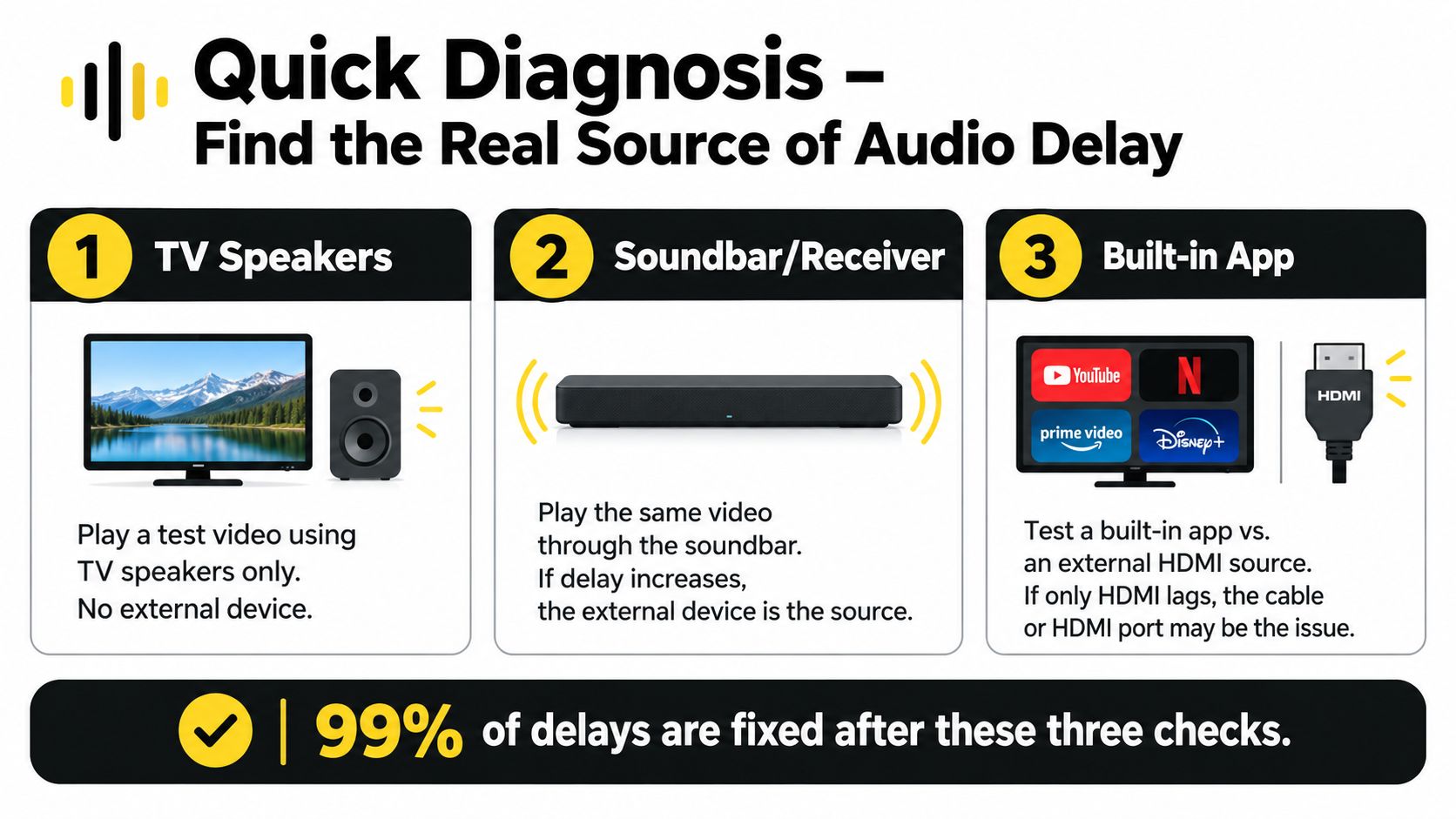
Run the isolation test
Start with TV speakers. Turn off or disconnect the soundbar, receiver, Bluetooth headphones, and other audio devices. Play the scene through the built-in speakers. If the sync is wrong here, the TV's processing chain, app, broadcast, or source content is involved.
Use the same scene through external audio. Reconnect the soundbar or receiver and play the scene again. If the delay appears or becomes more noticeable, focus on the external audio path rather than repeatedly changing the TV's picture settings.
Compare sources. Test a built-in streaming app, then an HDMI device such as a streaming stick, console, or set-top box. If the built-in app is aligned but HDMI is not, inspect the HDMI cable, port, device output mode, and the processing performed by the connected equipment.
Reset any existing Audio Delay, AV Sync, or Lip Sync value to zero before comparing results. A previous adjustment can hide the original cause or make a new correction work in the wrong direction. Once the baseline is clear, change the value in small increments while watching the same mouth movement.
Practical rule: If the voice arrives after the mouth moves, you need to delay the audio or reduce the picture delay. If the voice arrives first, adding more audio delay makes the problem worse.
The most useful result isn't a perfect diagnosis on the first attempt. It's knowing whether every source behaves the same way, or whether one app, HDMI device, or audio connection is the outlier. For brand-specific guidance, CTF Mobile Phones TCL TV troubleshooting tips may help you locate the relevant menu on TCL equipment.
Fast TV Settings That Fix Most Audio Delays
Once you know the delay is linked to the television or its output settings, change one setting at a time. Menu names vary between manufacturers and software versions, but the controls usually appear under Sound, Audio, Advanced Sound, or Digital Audio Output.
Reduce picture processing first
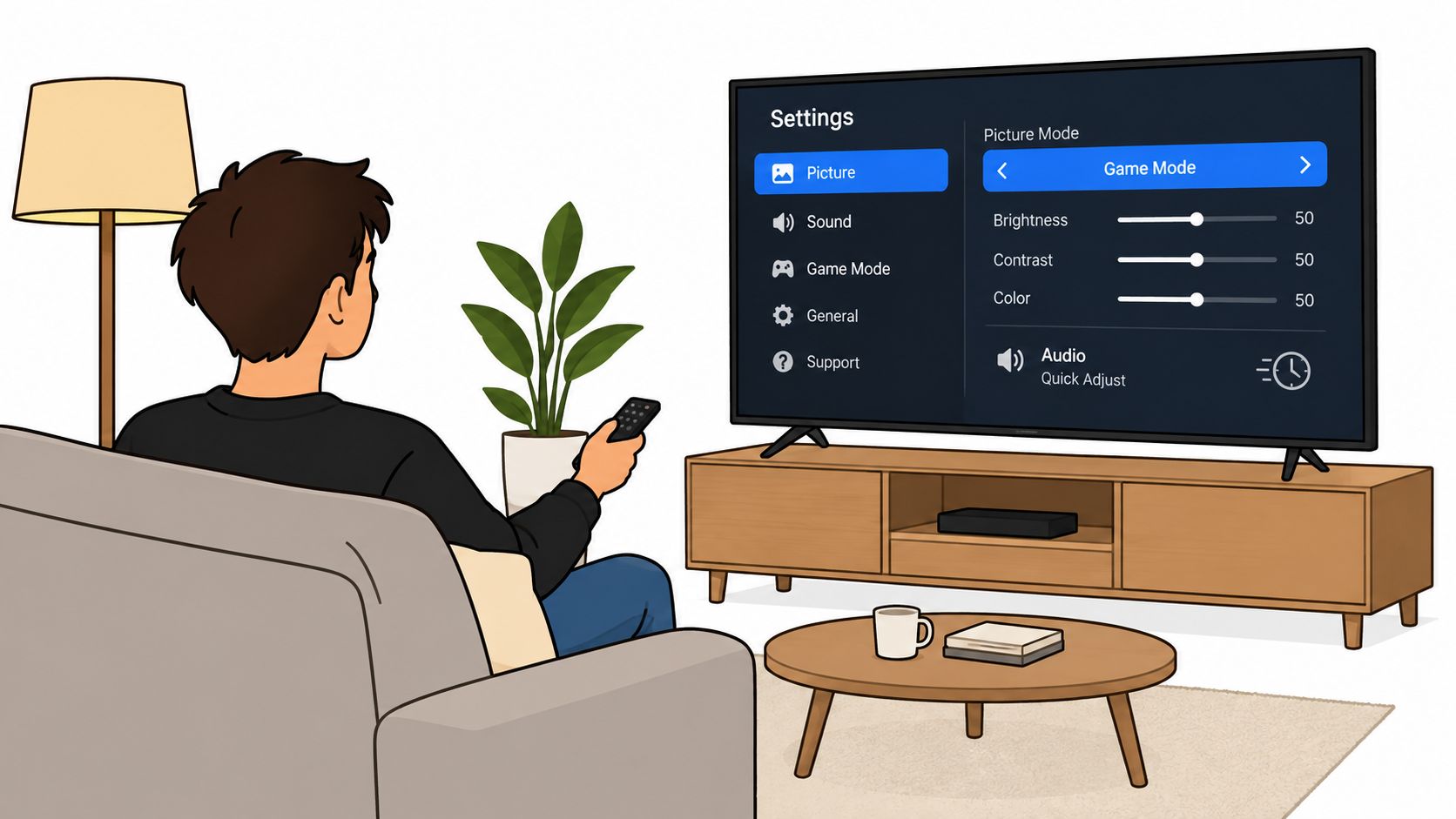
If the TV speakers are already late, reduce processing that can hold the image in a buffer. Turn off or reduce motion smoothing, noise reduction, dynamic picture enhancements, and similar processing temporarily. On many televisions, Game Mode, Low Latency Mode, or a comparable picture preset reduces processing and is a useful diagnostic even if you're watching films rather than playing games.
Test the dialogue scene after each change. Don't leave every enhancement disabled automatically. The practical aim is to find which processing feature affects timing, then decide whether the picture-quality trade-off is acceptable.
Set the audio offset deliberately
Look for Audio Delay, AV Sync, Digital Audio Delay, or Lip Sync. If audio is late, reducing the television's processing or lowering an audio delay value may help. If audio is early, increase the audio delay so it waits for the picture.
Use small changes rather than jumping to a large number. The required value depends on the display, source, and audio chain, so there isn't one universal setting. Rohde & Schwarz notes that display AV delays can reach as much as 100 ms, and its measurement tools analyze delays up to ±400 ms with microsecond resolution. Its TV display lip-sync measurement guidance explains why measured correction is more dependable than guessing.
Change the digital output mode
If the audio is routed to a soundbar or receiver, test the TV's Digital Audio Output options. Switching from Auto or Bitstream to PCM can remove codec conversion that adds buffering. Pass-through can also help when the connected soundbar or receiver should handle decoding directly. Test both where available, because the correct choice depends on the capabilities of the devices in the chain.
Finally, check eARC. If both devices support it, eARC can carry higher-bandwidth formats and may provide a cleaner signal path, but a mismatched configuration can create problems. Toggle eARC off and on as a controlled test, then retest the same scene. Save the setting only after checking more than one source.
Fixing Delay by Connection Type Including ARC eARC and Bluetooth
The connection determines where audio is decoded, buffered, and handed off. That's why a soundbar can be perfectly aligned through one input but noticeably late through another. Treat the cable path as part of the diagnosis, not as an afterthought.
| Connection Type | Common Delay Cause | Fastest Fix |
|---|---|---|
| HDMI ARC | TV processing, format conversion, or soundbar buffering | Test PCM and Bitstream, then adjust Lip Sync |
| HDMI eARC | Device compatibility, processing, or eARC configuration | Confirm eARC on both devices, test Pass-through and PCM |
| Optical | Format conversion or limitations in the audio path | Test PCM and use the soundbar's delay control |
| Direct HDMI to sound system | Receiver or soundbar decoding and video processing | Enable Auto Lipsync, then set a manual offset if needed |
| Bluetooth | Wireless buffering and codec latency | Test TV speakers or use a wired connection |
HDMI ARC and eARC
ARC sends television audio back to a soundbar or receiver through the HDMI connection. eARC offers a more capable return channel, but it still doesn't guarantee perfect timing if the TV or audio device adds processing. Reseat both HDMI plugs, confirm the cable is firmly connected, and test another compatible HDMI port if the television provides one.
Set the TV and soundbar to compatible output modes. Pass-through can prevent the TV from decoding and re-encoding a signal unnecessarily, while PCM can be a useful troubleshooting fallback when a particular codec causes lag.
Optical and direct HDMI
Optical is straightforward and often stable, but it may require the TV to convert the audio format before sending it. If dialogue becomes aligned when you select PCM, the previous output mode was likely creating extra processing.
With a source connected directly to the receiver, the receiver controls much of the audio timing. Enable Auto Lipsync when the equipment supports it, then verify the result with a built-in TV app and an HDMI source. For readers comparing signal paths, the explanation of continuous versus numerical sound capture provides useful background on how audio is represented before it reaches the speakers.
Bluetooth
Bluetooth is convenient, but it introduces another wireless buffer. It's a poor first choice for television dialogue when precise lip sync matters. Disconnect Bluetooth headphones or speakers and compare the built-in speakers or a wired audio system. If the mismatch disappears, use the Bluetooth device's own low-latency mode if available, or choose a wired path for consistent timing.
Soundbar Receiver and Console Tweaks for Perfect Lip Sync
The TV may only be reporting a problem created by the soundbar or receiver. External devices often include their own Lip Sync, Audio Delay, or AV Sync control, and that is usually the right place to correct a delay introduced after the television sends the signal.
Start with the soundbar or receiver's automatic setting. Auto Lipsync can use timing information reported through HDMI, especially when the display and receiver communicate correctly. If the result is stable across sources, leave it enabled rather than adding a second manual correction in the TV.
When Auto Lipsync doesn't solve the problem, use the receiver's manual control. Adjust while watching a clear speaking scene, and move in 10 ms to 20 ms steps. Those step sizes are a practical tuning method, not a claim that every system needs the same correction. Stop when consonants and mouth movements align, then check a second programme before saving the setting.
Receiver rule: Correct the device that introduces the delay. A source-level offset can work for one player, but a receiver-level correction is usually more useful when multiple sources share the same audio path.
Check format-specific behaviour
A soundbar may stay aligned with stereo content but lag when it receives a surround or Dolby stream. Test the TV's PCM output, then test Pass-through, and note whether the mismatch changes with the format. If only one format produces the problem, the codec conversion or surround processing deserves attention rather than a large global delay.
Update the TV, receiver, and soundbar firmware before spending time on unusual workarounds. Firmware can change HDMI handshake behaviour, audio decoding, and lip-sync handling. Also disable unnecessary sound modes, virtual surround effects, AI processing, and voice enhancements while testing. Re-enable them one at a time after timing is stable.
Consoles and streaming devices
For a console, enable the television's Game Mode or low-latency picture mode and avoid routing the controller headset through a delayed Bluetooth connection. If a console or streaming stick feeds the receiver first, compare it with a direct-to-TV connection. That simple rearrangement identifies whether the receiver is adding the lag.
Use the following demonstration after adjusting the equipment, but judge the result with your own dialogue scene as well.
Final Checks and When to Fix Recorded Audio Instead
A setting that works on one programme isn't necessarily a complete repair. Verify the result with dialogue from a built-in app, an HDMI source, and any broadcast or media player you use regularly. Watch for a delay that changes after pausing, switching formats, changing inputs, or activating a sound mode.
Use this short verification routine:
- Check speech: Watch close-up dialogue and confirm that mouth movements and consonants arrive together.
- Check sources: Compare at least one built-in app with one external input.
- Check output modes: Test the chosen PCM, Bitstream, or Pass-through configuration.
- Check stability: Pause, resume, change channels or apps, and confirm the offset remains consistent.
- Save the result: Record the working TV, soundbar, and receiver settings so a reset doesn't force you to start over.
If the mismatch exists only in one film, programme, livestream, or recording, playback equipment may not be the cause. The audio and video could have been combined incorrectly during editing or recording. A useful clue is that every other source stays aligned while one file remains wrong.
For recorded material, audio cleanup and alignment belong in post-production rather than in the TV menu. ClearAudio can process dropped audio or video files in a browser, isolate dialogue, reduce noise, hum, hiss, and room echo, and provide quality modes ranging from quicker processing to higher-quality options for video work. That makes it relevant when the recording itself contains distracting or misaligned speech, not when your television has a system-wide playback delay.
The practical sequence is simple: isolate the source, establish the direction, reduce processing, choose the correct output mode, adjust the device that adds the delay, and verify across inputs. Don't keep moving sliders after the system is aligned, because a later change to eARC, firmware, picture processing, or the connection path can alter the required offset.
If a recording still sounds noisy, echoey, or unclear after you've confirmed the TV is correctly synchronized, ClearAudio lets you upload audio or video, specify whether you want dialogue or another element preserved, and process the file in the browser. Use it to clean and prepare recorded speech before bringing the file back to your television or editing workflow.