
You've got an interview recording where the guest's best answer sits under a music bed. Turning the music down makes the dialogue sound thin, EQ creates new problems, and noise reduction only exposes more damage. That's the point where AI source separation becomes useful. Instead of filtering a frequency range and hoping the voices survive, modern systems analyze the patterns in a mixed recording and estimate which parts belong to speech, music, or other sounds.
The result can be remarkably practical, but it isn't magic. A clean podcast mix, a compressed social video, and a field recording with overlapping voices demand different decisions. The right workflow starts by identifying what you need to preserve, preparing the original file carefully, and judging the output for its intended use rather than chasing a perfect isolated stem.
Table of Contents
- Why AI Changed Audio Separation Forever
- Preparing Your Audio File for Separation
- Running the Separation Process
- Choosing the Right Quality Mode for Your Project
- Fixing Common Separation Problems
- Real-World Applications and Workflow Integration
Why AI Changed Audio Separation Forever
A podcast guest answers clearly, but a music bed sits at the same level. In a field recording, traffic, room reflections, and overlapping voices may occupy the same range. EQ can lower part of that energy, yet it can also thin the speech or leave the music sounding unnatural. AI separation approaches the problem differently by estimating which patterns belong to speech, music, or other sources.
Traditional cleanup still has a place. Low-cut filters, narrow notches, de-essing, and music ducking work well when the unwanted sound is predictable and does not overlap the dialogue too heavily. They become blunt tools when a vocal, guitar, piano, cymbal, and room reflection share frequencies. A model can use timing, texture, and musical context to make a more targeted estimate.
Audio source separation became a distinct research field in the mid-1990s. A review covering more than 30 years traces its development through a survey around the 50th anniversary of ICASSP in this 2025 review of source separation research. Commercial stem-separation tools began appearing around late 2018, with practical splits such as vocals, drums, bass, and other stems as summarized in the history of music source separation.
From filtering to pattern recognition
Neural models use surrounding context. They can follow the continuity of a spoken syllable, the repeated texture of a drum pattern, or the harmonic movement of a music bed. A filter reacts to energy within a frequency band. A trained model estimates the source producing that energy, which is why it can handle overlaps that defeat a simple EQ curve.
The published milestones explain the improvement. U-Net became an important milestone for vocal separation and reached 11.7 dB SDR on MIR-1K. Open-Unmix later reached 5.3 dB SDR on MUSDB18, while Conv-TasNet, first designed for speech separation, was adapted to music separation and reached 7.0 dB SDR. Those results are tied to particular datasets and test conditions, so they do not predict the result from a compressed podcast, a noisy video export, or a crowded field recording.
The practical gap matters more than the benchmark. A speech-focused mode is usually the right starting point for dialogue editing, while a vocal or music mode suits remixing and stem work. Higher quality settings can preserve more detail but may take longer and expose different artifacts. For a quick reference track, a faster tier may be sufficient. For broadcast dialogue, inspect consonants, ambience, and musical residue before committing to the result.
Practical rule: Treat separation as an estimate. Keep the original, audition the output in context, and judge it by the next production step, not by the promise of a perfectly isolated stem.
Creators can also use Fame's AI features when separation is part of a broader workflow. Define the target first, then choose the mode and quality level that match the recording and its intended use.
Preparing Your Audio File for Separation
The model can only work with the material you provide. If the file is clipped, heavily compressed, or already damaged by aggressive processing, separation may make those weaknesses more noticeable. Preparation doesn't create missing information, but it prevents avoidable quality loss before the AI begins.
Start with the cleanest available source
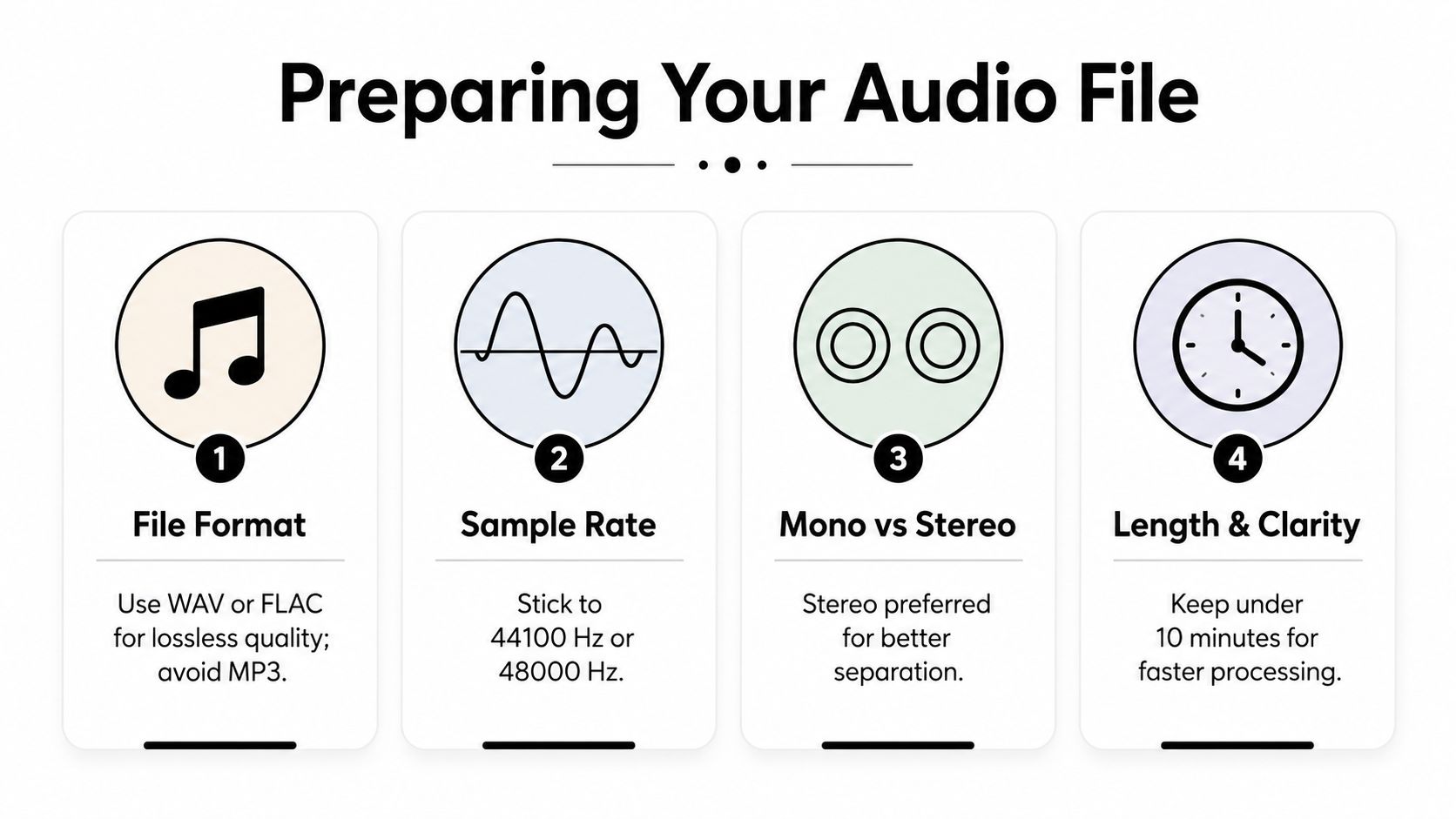
Use the original camera, recorder, or editing-session export whenever possible. If the source is an MP3, convert it to WAV or FLAC before uploading. Conversion won't restore information lost during MP3 encoding, but it avoids adding another lossy encode during the workflow and gives you a stable working file.
For sample rate, keep the file at its native rate when you know it. If you're preparing a general-purpose file, 44,100 Hz or 48,000 Hz are sensible working choices. Don't repeatedly resample the same recording. Every unnecessary conversion adds another opportunity for level, timing, or compatibility problems.
Stereo is usually preferable when the original contains meaningful spatial information. A stereo recording may give the separation model useful differences between the left and right channels, while a mono file offers no such cue. Mono isn't unusable, especially for a single close microphone, but it can provide less context when speech and music were recorded with different placements.
Inspect before you commit processing time
Open the file in an editor such as Audacity, Adobe Audition, Reaper, or your video editor and check several points:
- Clipping: Look for flattened waveform peaks and listen for crackling on loud consonants. A clipped source can't be repaired cleanly by separation.
- Channel problems: Confirm that both stereo channels play correctly and that the dialogue isn't missing from one side.
- Existing processing: Heavy limiting, denoising, echo cancellation, or reverb can confuse the model because the sources have already been altered.
- Dynamic range: Don't normalize automatically. Preserve natural dynamics unless the file is extremely quiet and your tool requires a stronger input level.
- Content changes: Listen to speech over music, speech alone, music alone, and transitions. The hardest moments often occur when the soundtrack rises under a word or when room reflections overlap the voice.
Keep a copy of the untouched original and create a working export for each experiment. Short test excerpts are useful for comparing settings, but judge the final result using the full context. A model may sound excellent during a quiet sentence and fail when the speaker overlaps a chorus or a dense musical passage.
Running the Separation Process
The most important choice is not the upload button. It's the target definition. “Separate speech from music” can mean two different jobs: preserve the dialogue while reducing music, or extract the music while removing speech. Those goals use different masks and produce different compromises.
Start by selecting the source file and choosing the closest target:
- Speech or dialogue preservation: Use this for interviews, podcasts, tutorials, talking-head video, lectures, and calls. The priority is intelligibility and natural consonants.
- Music extraction: Use this when you need a backing track, a vocal stem, or music for a remix. The priority is musical continuity and reduced vocal presence.
- Specific source extraction: Use a targeted description when the tool supports prompts, such as “spoken dialogue,” “singing voice,” “background music,” or “drums.”
- Advanced control: Use granular settings only after a basic pass gives you a useful reference. Extra controls can help, but they can also make it harder to understand which change caused an artifact.
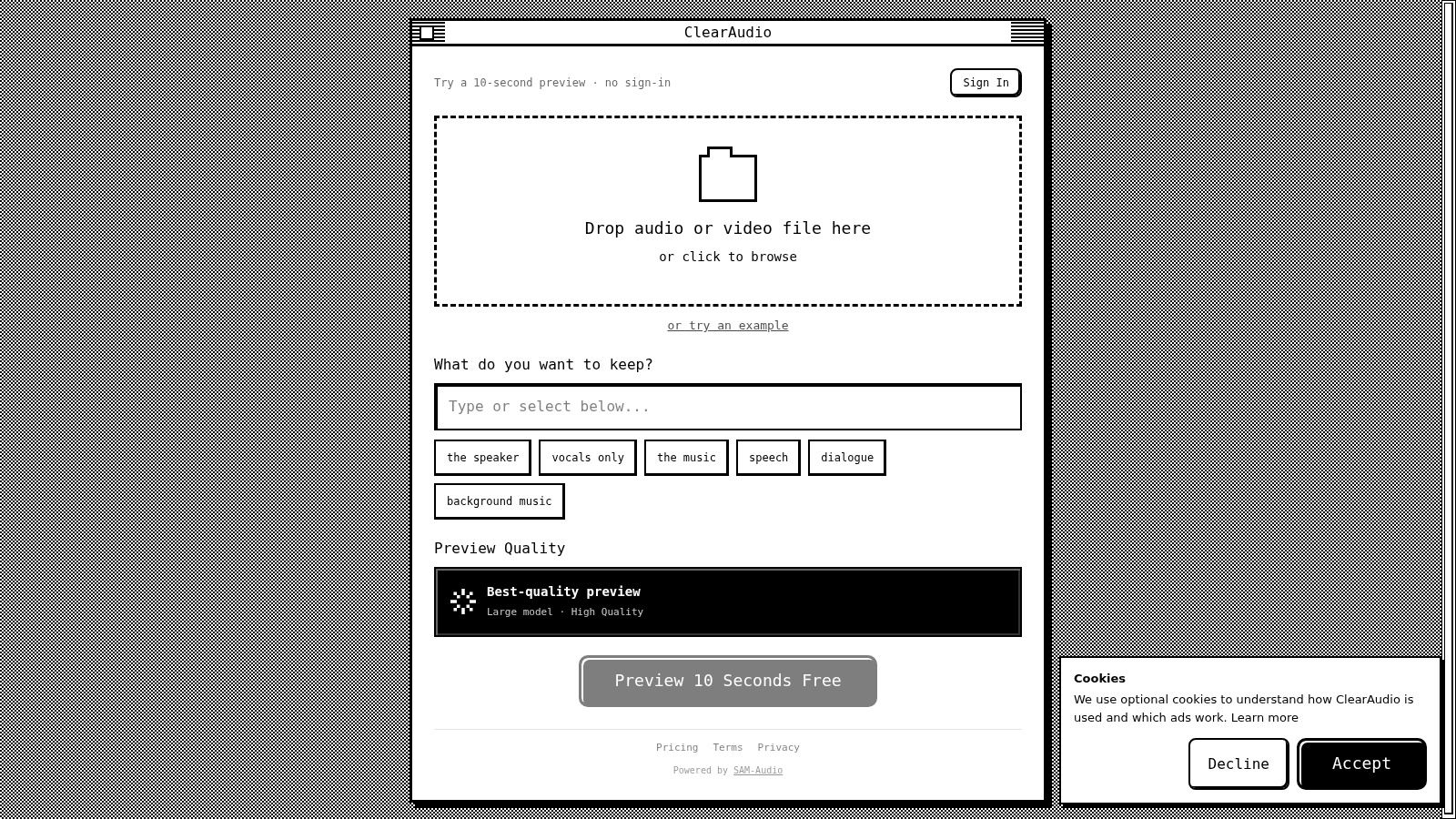
For an interview with a music bed, describe the desired result directly: “Keep the main spoken dialogue and reduce the background music.” For a video where the soundtrack bleeds into the microphone, use “Isolate spoken dialogue from the music track while preserving natural room tone.” For a mixed song, “Extract the singing voice” and “Extract the background music” are separate jobs. Run both only if you need both outputs.
Let the target determine the quality decision
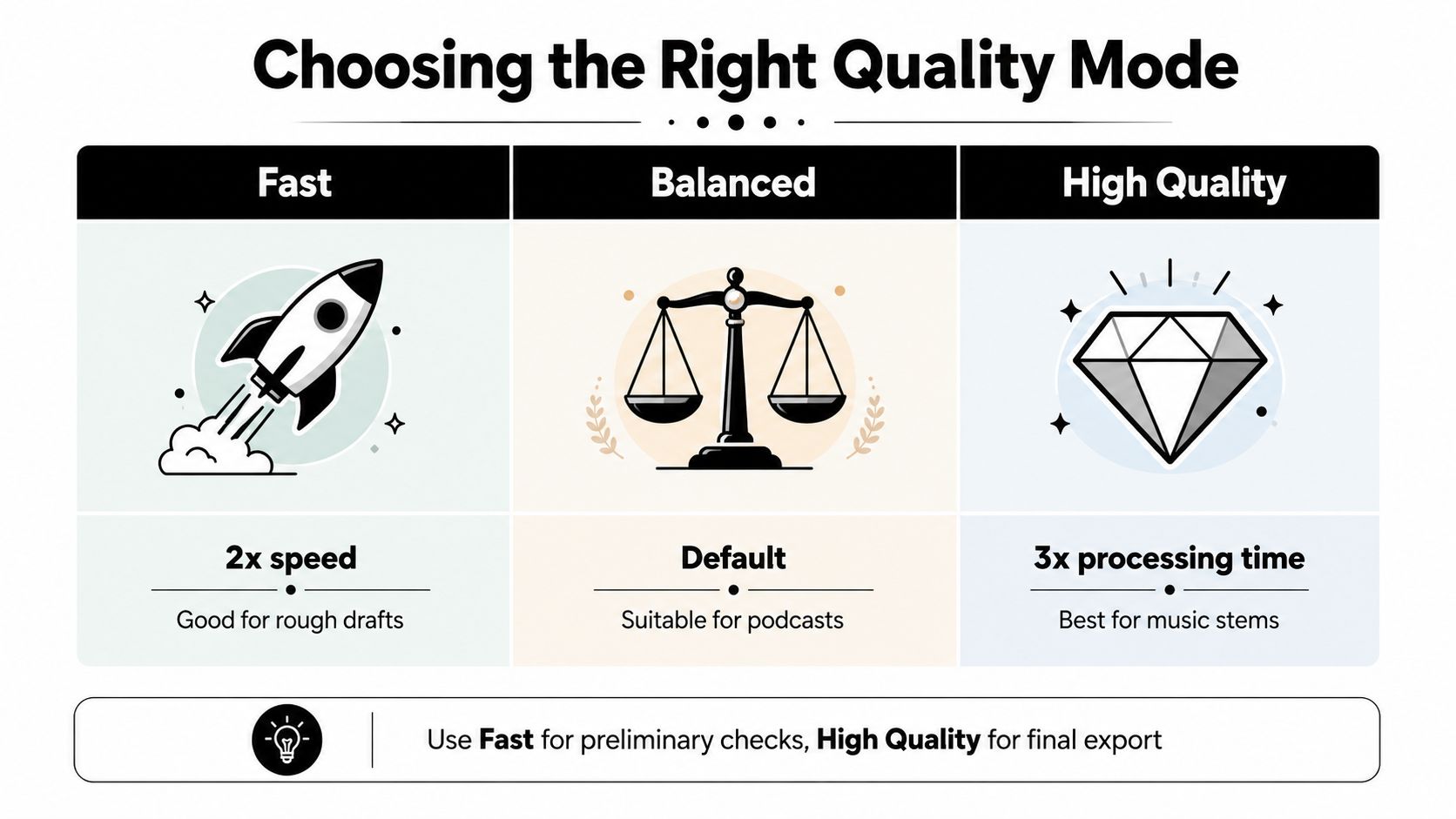
A fast mode can help you check whether the file is separable before committing to a heavier pass. If the preview already contains severe watery modulation, missing consonants, or obvious music pumping, changing the target or using a higher-quality model may help. If the original has clipped speech or strong reverb, more processing won't necessarily solve the underlying problem.
Promptable separation is moving beyond fixed vocal and music buttons. Meta's SAM Audio research describes text, visual, and temporal-span prompting across speech, music, and general sounds. That direction is useful because real recordings don't always fit tidy stem categories. You may want the person speaking on camera, the music during a particular passage, or a sound event that doesn't have a dedicated button.
The queue and completion estimate are operational details, not quality measurements. Don't assume a longer wait guarantees a better output, and don't judge a mode only by speed. Export the separated file, align it with the original if needed, and audition it both solo and in the final mix.
Use the player or editor view below as a reminder that separation belongs inside an editing workflow, not in isolation.
Choosing the Right Quality Mode for Your Project
A field recording may contain clipped dialogue, traffic, room reflections, and music from a nearby speaker. The highest quality mode cannot repair information that the microphone never captured. Choose the mode according to the final use, how exposed the separated track will be, and how much processing follows it.
Match quality to the deliverable
ClearAudio offers Small, Base, PRO Large, and PRO Large-TV modes. The useful distinction is how much speech detail, music texture, and spatial information the output can retain for your workflow. Small suits a quick separability check. Base handles many routine dialogue jobs. PRO modes are more appropriate when the stem will stand alone, receive heavy editing, or support a professional video workflow.
| Project need | Sensible starting point | What to listen for |
|---|---|---|
| Rough edit or internal review | Small | Whether the target is recoverable |
| Podcast dialogue cleanup | Base | Consonants, room tone, and music residue |
| Final dialogue for video | PRO Large-TV | Natural speech across cuts and soundtrack changes |
| Vocal or instrument extraction | PRO Large | Musical transients, sustain, and phase artifacts |
A podcast editor normally needs intelligibility and consistent tone across many passages. Base is often a sensible starting point, especially when the speech will sit under a controlled music bed. A video editor faces a more exposed result when dialogue must carry a quiet scene, a close-up, or additional EQ and compression. In that case, a PRO mode may preserve more usable detail, though it still cannot remove severe clipping or reverb cleanly.
Judge the result after downstream processing
Separation artifacts can become more obvious after compression, limiting, or a bright EQ boost. Run the candidate stem through an approximate version of the final chain before approving it. A file that sounds acceptable in solo may turn metallic when its high frequencies are raised. A slightly dull stem may work better beneath a new music bed than a brighter stem with unstable consonants.
Music extraction uses a stricter listening standard. Sustained notes can warble, cymbals can develop phase movement, and the center image can sound hollow. Those defects may be irrelevant in a quick dialogue edit but unacceptable if the music stem will be released or mixed on its own.
Lab results help set expectations, not dictate the setting for a messy recording. In a data-scarce comparison of 160 test mixtures across 40 source pairs, an attention-augmented U-Net reported mean SI-SDR of +5.17 dB for speech and +11.52 dB for music, compared with +3.81 dB for speech and +10.48 dB for music for a baseline U-Net in the benchmark paper. The result shows that model design affects separation and that music performed better than speech in that test. A podcast, field recording, or video take may behave differently because noise, reverberation, clipping, and overlapping sources are less controlled.
Listening test: Approve the file in context. Check quiet speech, loud speech, overlapping music, transitions, and the exact platform or mix where the audience will hear it.
Fixing Common Separation Problems
A podcast interview may sound clean in the first minute, then turn watery when the guest raises their voice over the music. A field recording can produce hollow speech, while video dialogue may develop timing drift after export. These failures need different fixes. Start by identifying the artifact, then choose whether the speech stem, music stem, or the original recording is the better source for the final edit.
Diagnose the sound before changing settings
A watery or phasey texture usually appears around sibilants, sustained notes, cymbals, or reverberant spaces. The model has removed overlapping material imperfectly. Post-processing can reduce the distraction, but it cannot recreate a clean source that was never captured.
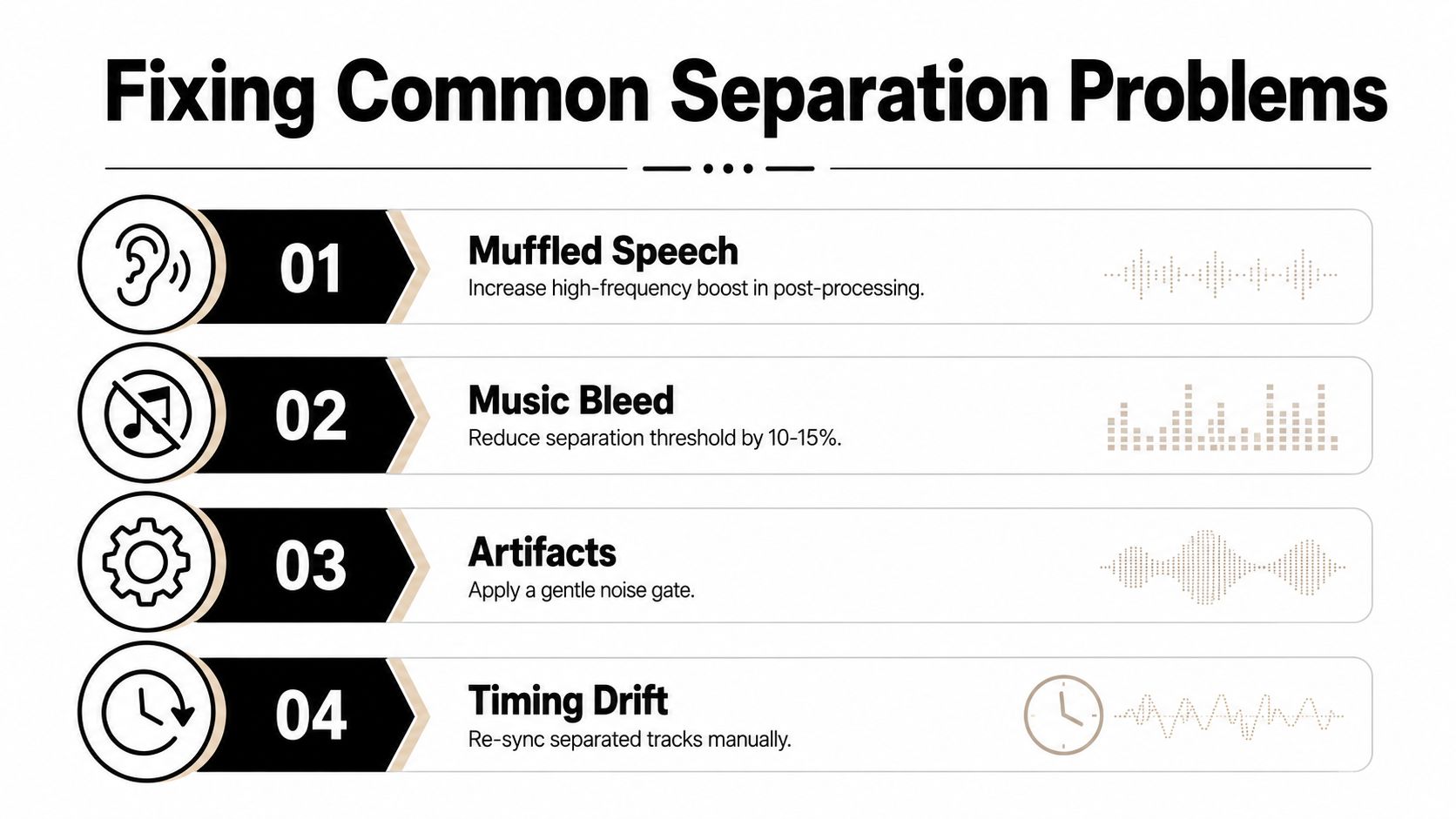
Muffled speech often means useful high-frequency detail was removed with the music. Try a restrained presence lift after separation, then stop when consonants become brittle. If the voice sounds hollow, compare it with the original before adding more treble. Room reflections or a doubled signal may have been suppressed along with the bleed.
Music bleed is easiest to hear during pauses and sustained vowels. If the residue follows the speech rhythm, the model may be confusing vocal harmonics with the soundtrack. Re-run the job with a more precise speech target or test another quality mode. Avoid stacking separation passes without listening after each one. Every pass can remove useful content and add another layer of artifacts.
The PodcastMix evaluation reflects the gap between controlled testing and practical use. On real podcasts containing foreground speech and background music, U-Net reached an overall quality score of 3.84 for foreground speech, while music was harder to recover across the evaluated models and received lower SDR, OVRL, and SIG scores in the PodcastMix evaluation. For a speech-led edit, judge intelligibility and stability first. A technically imperfect music stem may be acceptable under dialogue, while the same defects become obvious if the stem will be released alone.
Use post-processing sparingly
- Muffled dialogue: Apply a gentle high-frequency lift, then check sibilance and mouth noise.
- Residual music: Use light automation or a downward expander during pauses instead of crushing the entire track.
- Watery artifacts: Try another separation mode or target before using a noise gate. Gating may hide residue, but it can chop word endings.
- Hum and hiss: Apply narrow hum reduction or mild broadband denoising after separation. Keep both conservative, since isolated speech can expose noise more clearly.
- Timing drift: Compare the separated file with the original at the start, middle, and end. If alignment changes, re-sync manually and use the original timeline as the master.
Listen in mono as well as stereo. Wide separation can hide phase problems that become obvious when channels combine. Check the file's beginning and end too, since model behavior may differ from the middle of a continuous passage.
Hard limit: Clipped audio, severe reverberation, and heavily overlapping sources may leave no clean repair. Return to the original recording or find an alternate take when the separated stem cannot support the intended use.
Real-World Applications and Workflow Integration
Separation should be one controlled stage in the production chain, not a permanent replacement for the recording. For a podcast, process the interview before final leveling, keep the original and separated dialogue in clearly named folders, and add a new music bed only after checking transitions. The source may still be needed for a breath, laugh, or room sound that the model removed.
For video, export isolated dialogue with the same timeline reference as the picture. Preserve the original sample rate, verify the first spoken word against the image, and recheck sync after trimming or frame-rate conversion. If targeted extraction is available, inspect speakers separately. A nearby voice may remain clean while a distant speaker carries more room tone and soundtrack bleed.
Match the workflow to the deliverable
Podcasts and interviews need intelligibility before maximum removal. Compare the separated track with the original at normal listening level, then under the final compressor. If music remains, reduce it in the mix instead of forcing complete removal from every pause.
Video dialogue benefits from a speech target and a final check of room tone, clip transitions, and soundtrack changes. Separation can rescue a usable edit, but it cannot compensate for a microphone placed too far from the speaker.
Music production requires stricter review. Extracted vocals may suit a remix, rehearsal reference, or creative effect while failing as a release-ready acapella. Listen for sustained-note warble, narrowed stereo width, cymbal residue, bass transients, and passages where instruments share the vocal range. The Drumloop AI stems guide provides useful context for fitting separated parts into production and remixing.
Lectures, calls, and field recordings should be tested on representative mixtures, including reverberant rooms, overlapping speech, and changing background sound. Clean demonstrations often hide the artifacts that matter in a finished edit. Choose the separation mode by the downstream job: speech intelligibility for transcription or dialogue editing, or greater musical detail when a stem will be rearranged. Quality tiers make the same trade-off. A faster mode may be adequate for a rough cut, while a higher-quality mode earns its processing time when the isolated file will be heard alone.
Browser-based ClearAudio lets users select targets such as speech, dialogue, vocals, music, or background music, with modes ranging from Small and Base to PRO Large and PRO Large-TV. It also includes cleanup for noise, hum, hiss, and room echo, which can keep the workflow in one browser-based setup. Treat those tools as separate decisions. Aggressive cleanup can make isolated speech thinner or more artificial.
Keep a record for every export: original filename, target, quality mode, date, and post-processing. This makes a good result reproducible and helps prevent an unreviewed stem from reaching a client or audience.
ClearAudio provides a browser-based workflow for separating dialogue, vocals, music, or background sound and reducing noise, hum, hiss, and room echo. Test a short passage first, compare speech-focused modes against the final mix, then visit ClearAudio for the full recording.